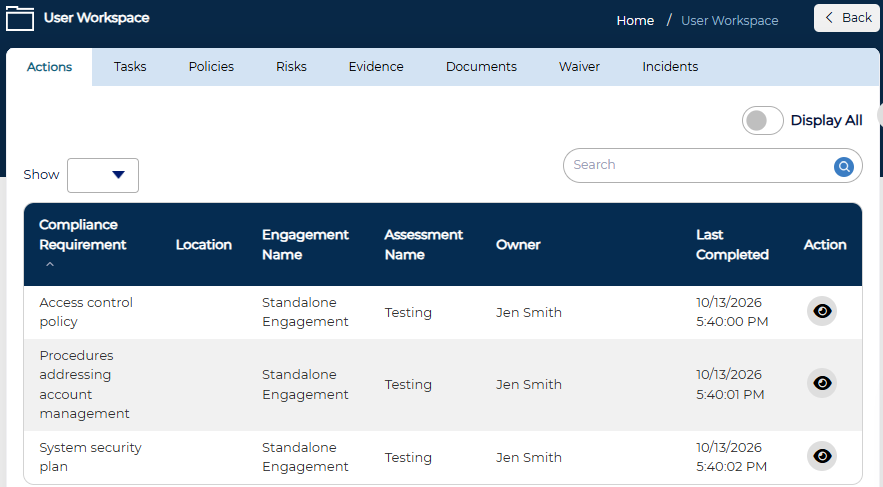
The User Workspace gives you one place to see the items in the CRT that need your attention. You don’t have to visit each module separately. The workspace pulls together your Action Items, Tasks, Policies, Risks, Evidence, Documents, Waivers, and Incidents and shows them in separate tabs.
Opening the User Workspace
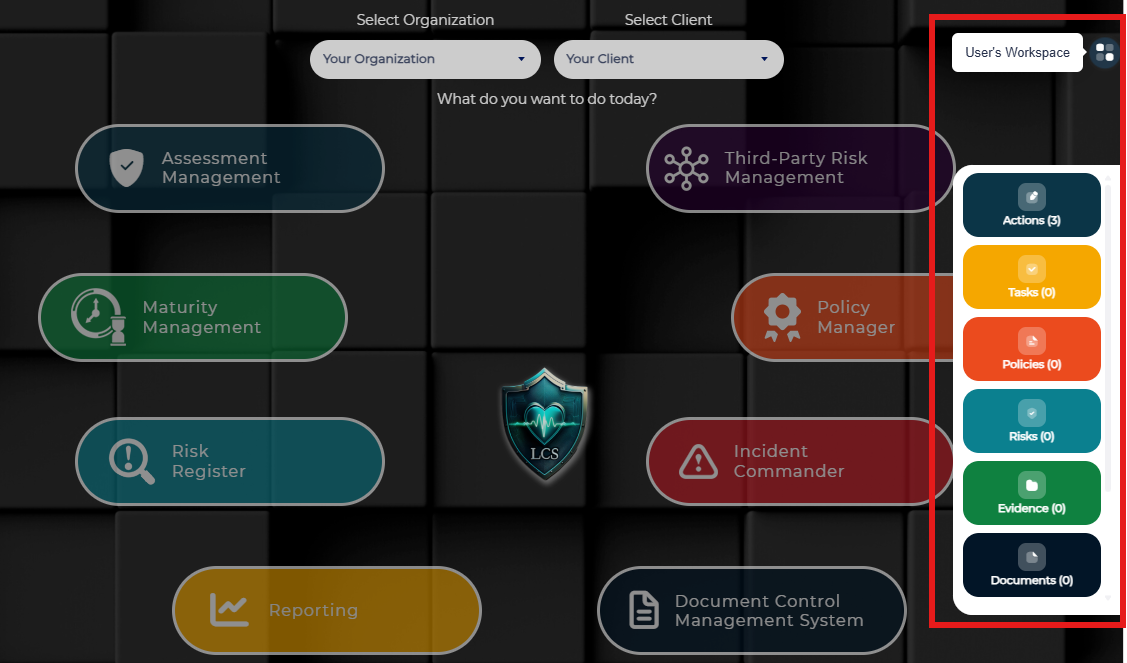
1. On the right side of the screen, click the User Workspace Icon.
2. A panel will open with a count of your open items in each category.
3. Select a category to go to that tab in the User Workspace
Understanding the Workspace Tabs
Each tab first shows a focused list of your items, based on your role in each record. Turn on the Display All toggle to see everything you’re responsible for in that area, including completed or closed items.
-
Action Items lists the Action Items that are incomplete within an assessment. Display All adds your completed Action Items
-
Tasks lists the tasks assigned to you for a managed finding with a status of new or in progress. Display All adds your completed tasks.
-
Policies lists the policies where you're a Policy Approver. Display All adds the policies where you're the Policy Owner.
-
Risks lists the risks where you're the Risk Owner. Display all add the Risks where you're the Risk Manager.
-
Evidence lists evidence where you're the Evidence Owner and the expiration date is within 30 days. Display Al shows all of your evidence in Assessment Management, including replaced and expired evdience and evidence that expires more than 30 days out.
-
Documents (Document Control Management System) lists the documents where you're the Owner, plus the documents where you're an Approver and it's your turn to approve. Display All shows every document assigned to you.
-
Waivers lists the waivers where you're an Approver and it's your turn to approve. Display All shows every waiver assigned to you.
-
Incidents lists the open incidents (any status other than closed) where you're the Incident Owner or Manager. Display all adds your closed incidents.