
Create a New Document
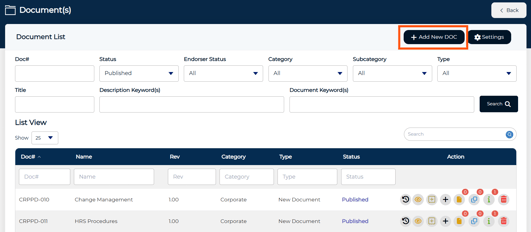
1. Select the 'Add New DOC' button
2. Complete the required fields and select approvers to be included
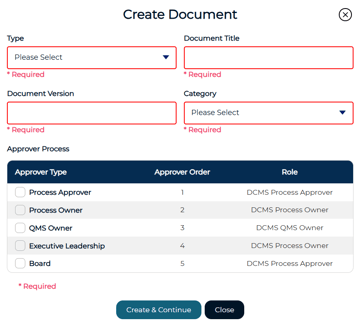
3. Select Create and Continue to move forward
i. Select Close to cancel document creation
Complete the Document Details
After creation, the system will navigate to the Document Details screen.
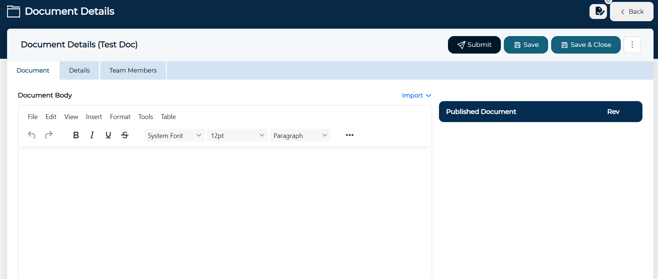
Document Tab
Use the Document tab to add and manage document content.
This includes:
-
Entering content manually in the document editor
-
Importing content from the Governance Library
-
Importing text from a document file
Once content is loaded, it can be reviewed and edited as necessary before saving or submitting
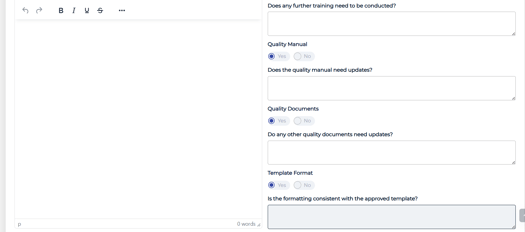
Details Tab
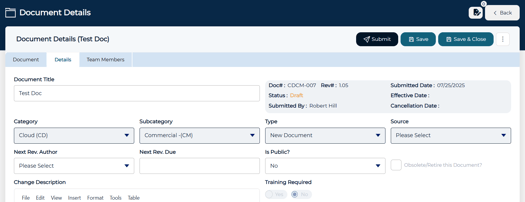
The Details tab contains additional document information. This section is optional during initial creation, but can be used to define review details such as:
- Next Revision Author
- Next Revision Due Date
- Additional Document Detail Questions (if applicable and configured)
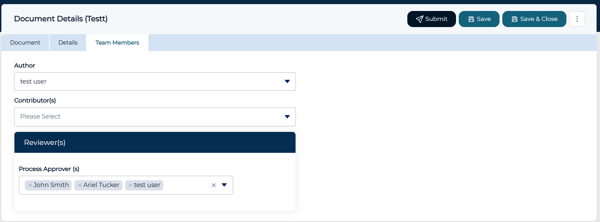
Team Members Tab
Use the Team Members tab to assign document responsibilities.
Assign the following:
- Author
- Contributor (optional)
- Reviewer(s)
- Multiple users can be selected for each reviewer type, but only one approval is needed.
- Multiple users can be selected for each reviewer type, but only one approval is needed.
Save or Submit the Document
Once all required information is completed:
- Select Save to store the document as a draft
- Select Submit to send the document for review and approval
After submission:
- The document status changes to Submitted
- Notification emails are sent to assigned reviewers and the document enters the approval workflow
- The document must be approved before it can be published