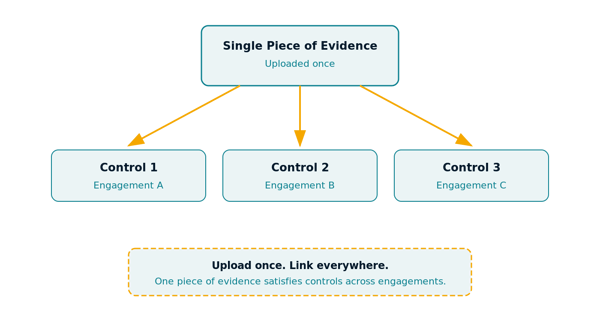
Reusable evidence allows you to link existing evidence to a control rather than uploading the same file multiple times. When the source evidence is updated, you are notified so you can choose whether to adopt the latest version or keep your current version.
How It Works
When adding evidence to a control, you have two options. You can upload new evidence, or you can link to evidence that already exists in the system. For details on adding new evidence, see Evidence Management.
Linking does not create a copy of the file. It creates a record connecting the control to the original evidence. Evidence Manager users can edit the full evidence record including metadata. Evidence Contributor users can update the evidence file but cannot edit metadata.
Linking Existing Evidence
Use this option when evidence has already been uploaded elsewhere in the CRT and applies to the control you are working on.
⚠️ Once evidence is linked to a control, it cannot be deleted, only deactivated.
1. Navigate to the control you want to add evidence
2. Select Add Evidence and then Select Existing.
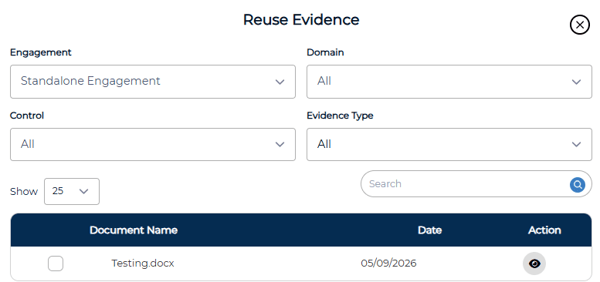
3. The Reuse Evidence window lists all available evidence. Use the dropdowns to narrow your results and the eye icon to preview the evidence.
4. Select the box next to the evidence you want to link. It will be added automatically.
💡 Some evidence may not appear in the Reuse Evidence panel. If evidence was marked as Restricted when it was uploaded, it is limited to its originating engagement and cannot be linked from other engagements.
Version Updates
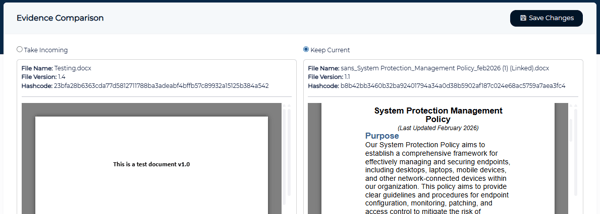
When the source evidence is updated, all users who have linked to that evidence will receive an email notification with a link to review the changes. The link opens a comparison screen showing your current version alongside the updated version.
1. Open the comparison link from the email notification
2. Review the changes and select Take Incoming to update or Keep Current to keep the current version.
3. Select Save. Your decision will be logged automatically.