
If you've forgotten your password, the CRT makes it easy to reset it through a self-service email link.
⚠️The reset link sent to your email is valid for a limited time and can only be used once. If it expires before you use it, you will need to submit a new reset request.
Resetting Your Password
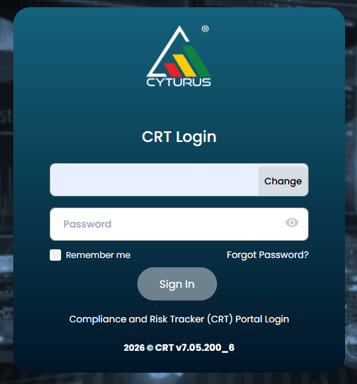
1. Navigate to your organization's CRT login page and enter your username, then select Continue.
2. When the password field appears, select Forgot Password
3. On the Forgot Password page, enter your username again and select Submit.
4. A confirmation message will appear confirming a reset link has been sent to your email.
5. Open the email from Cyturus and select Reset Your Password.
6. Follow the on-screen prompts to create your new password.
Troubleshooting Tips
-
Didn't receive the email? Check your spam or junk folder. If it's not there after a few minutes, confirm you entered the correct username and try again.
-
Link expired or already used? Return to the login page and submit a new Forgot Password request.
-
Still can't log in? Contact your CRT administrator for assistance.