
⚠️ You must have admin rights to complete the actions below
Client Creation
Access the Client Configuration Screen
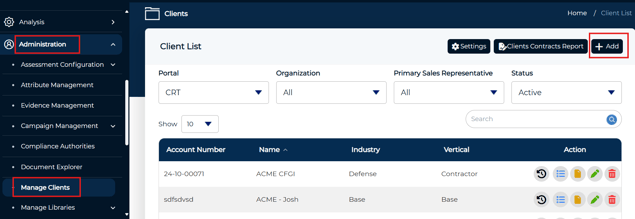
- Select Administration from the left hand menu
- Select Manage Clients
- Select the Add Button
Enter Client Details
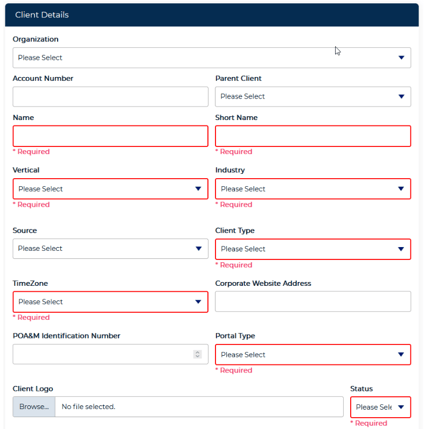
- Complete all relevant fields
- Short Name: Initial or common name (Used in reports)
- Vertical and Industry: Used for analytics and reporting
- Client Type: Direct is the standard selection
- Time Zone: Provides a variable on which to calculate local time vs UTC
- Portal Type: Defines client portal access (Self-Guided or Full CRT)
Client Contract
Once the client details are saved, you will then have access to additional sections including the client contract.
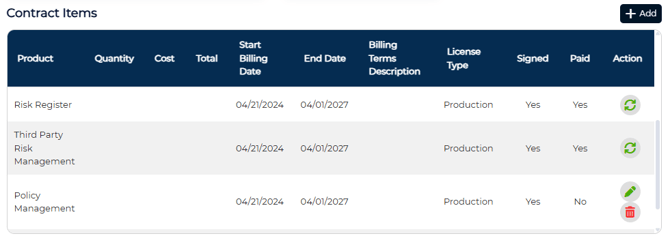
- From the Client Details page select Client Contract
- Select the Add button to create a new contract
- For an existing contract, select the Edit Icon
- Select the Add button to create line items for each desired module
- Ensure that billing dates are correct
- Modules must be marked both Signed and Paid to be activated
Enable Framework Access
Once each module has been added to a client, it will become available to configure.
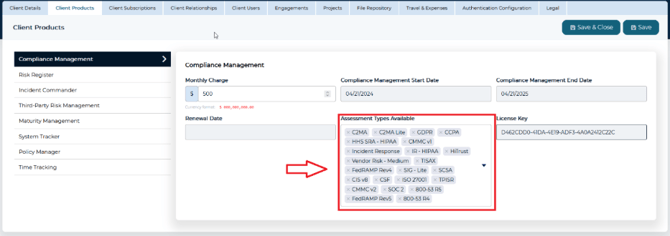
- Within the client, select the Client Products tab
- Navigate to the Assessment Types Available field and choose which frameworks should be available to the client
- If no frameworks are selected, you will not be able to create an engagement
- Select Save
➡️ Next Steps: