
⚠️ You must have admin rights to complete the actions below
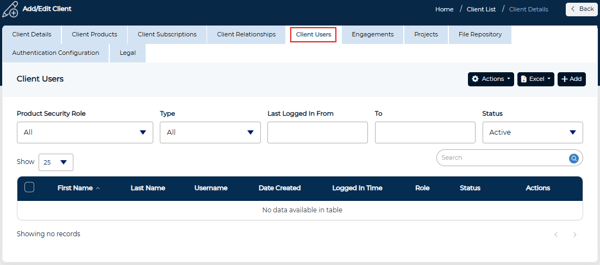
1: Create a User via Manage Client
- Navigate to Administration > Manage Clients > Edit
- Open the Client Users tab and select Add
2: Create a User via Manage Users
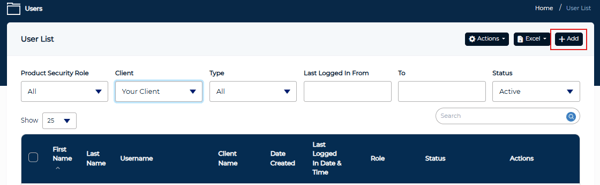
- Navigate to Administration > Users > Manage Users
- Select the Add button
Complete User Details
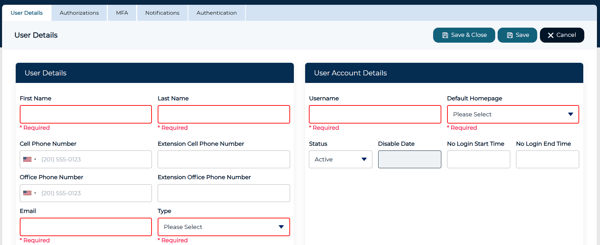
After selecting Add from either path, a User Details form opens.
-
Enter the required user information
Once all required fields are completed, select Save.
Configure User Authorizations
Once the User Details are saved, you will be directed to the Authorizations tab.
1. Select a Product Security Role
2. Select the Client the user should have access to
-
- One or more clients may be assigned
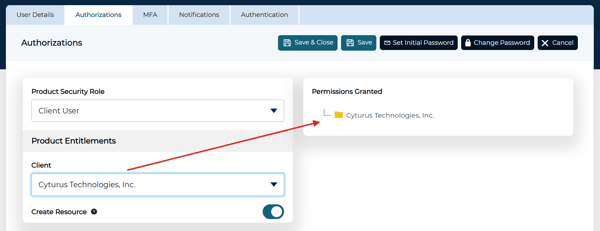
3. Select whether or not you wish to add this user as a Resource for use in RACI and certain other configurations. (Default option is ON.)
4. Select the Engagement the user should have access to
-
-
An engagement must be selected first before an entitlement
-
As entitlements are selected, the assigned permissions populate in the right hand pane
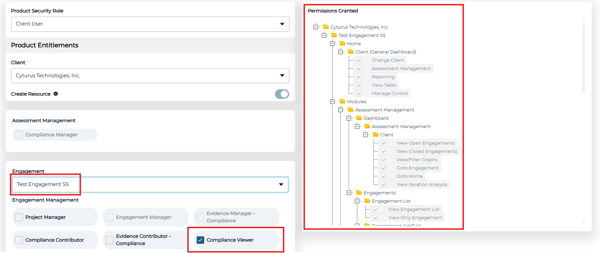
5. Select the appropriate module access and entitlements for the user
6. Once all entitlements are selected, select Save.