
⚠️ You must have an appropriate TPRM entitlement to complete the actions below
Before you can add a new third-party solution to the system, you must first create a Third Party Profile. This profile serves as the primary record for the organization and is required before any solutions, assessments, or related items can be associated with that third party. Additional guidance on creating a Third Party Profile is available in the Learn More section at the bottom of this article.
The Third Party Profile provides the foundational structure where all related information is stored, including organizational details, contacts, and overall relationship context. In contrast, third party solutions represent the specific products, services, or platforms that the third party delivers to your organization.
For example, if the third party is Microsoft, the profile captures Microsoft as the vendor entity. Individual solutions under that profile might include “SQL Server,” “Teams,” “Dynamics,” “Azure,” and other Microsoft offerings.
Navigate to the Third Party List
From the main navigation menu, go to: Third Party Risk Management > Third Parties List.
- The Third Parties List displays all existing third parties, along with key summary information such as name, type, and status.
Edit the Third Party Profile
In the Third Parties List view, select the relevant third party by clicking Edit to begin editing the selected Third Party Profile.
-
This action opens the Third Party / Third Party Contact Details form, which is the starting point for reviewing and updating the profile and for configuring associated Third Party Solutions.
Add a Third Party Solution
After clicking Edit, the Third-Party Details tab/form will appear, displaying the core information for the selected third party (such as name, type, and primary contact details). This view is your main workspace for reviewing and updating the profile.
Within this form, locate the tab labeled Third-Party Solutions in the tab bar (the exact position may vary based on your configuration, but it is typically next to the Third-Party Details tab). Select the Third-Party Solutions tab to open the area dedicated to managing the specific products, services, or platforms provided by this vendor. 
Opening this tab initiates the process of adding, viewing, or updating solution records associated with the third party. From here, you will be able to define each individual solution, capture key attributes for risk and compliance purposes, and prepare those solutions for assessment and ongoing monitoring. Click the Add button to start the process of adding a new Third-Party Solution.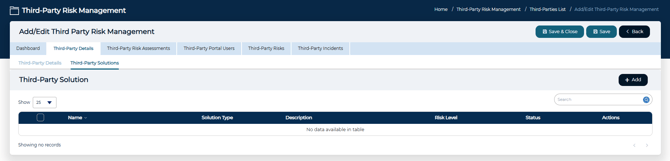
This form is used to capture the key identification and contact details for the third-party solution. These details establish how the solution will be referenced in your TPRM processes and how communication related to this solution will be managed. Typical fields may include (field labels may vary slightly based on your configuration):
- Solution Name (required): The formal name of the solution as it is used in contracts, purchase orders, license agreements, statements of work, or other authoritative documentation. Use a precise name to avoid confusion with other offerings from the same vendor.
- Solution Type: The category of the solution (for example, Software, Service, Platform, Infrastructure, or other user-defined types). Accurate classification supports more effective reporting, risk segmentation, and alignment with applicable regulatory or contractual requirements.
- Primary Contact Name: The individual at the third party who serves as the main point of contact for this specific solution (for example, an account manager, technical contact, or service owner).
- Primary Contact Email: The email address used for all solution-related communications, including assessments, requests for evidence, issue resolution, and remediation coordination.
- Primary Contact Phone: A direct phone number or primary line that can be used to reach the contact quickly for urgent matters, incidents, or time-sensitive risk discussions. A direct phone number or main line for urgent inquiries or incident coordination.
- Solution Website / URL: The main website, portal, or product page associated with the solution. This may be used for documentation, login access, status pages, or vendor-provided resources.
- Risk Level (if available): An initial or assigned risk rating that reflects the inherent or assessed risk associated with the solution (for example, Low, Moderate, High, or criticality tiers defined by your organization). This field can help drive prioritization of assessments and monitoring activities.
- Description: A concise narrative that explains the solution’s business purpose, scope of services, key capabilities, types of data processed or stored, and any known regulatory, contractual, or compliance obligations (such as CMMC, HIPAA, or data protection requirements).
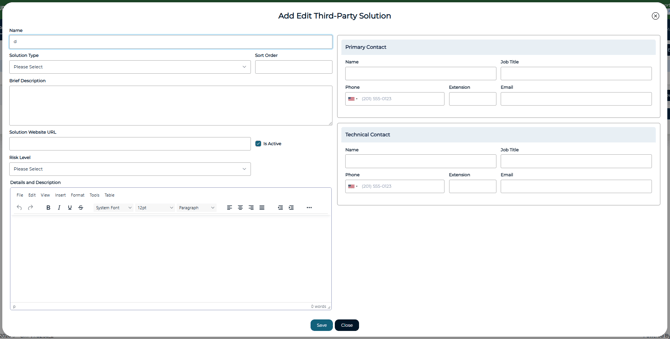
Tip: The only field in the editor that is required is the Solution Name. However, it is considered best practice to complete as many relevant fields as possible during the initial setup to reduce follow-up questions and rework later in the assessment process.
Saving the Third Party Solution
Once all required fields are complete, click Save to store the new solution record and return to the associated Third Party Profile. If you click Close instead, the window will close and any unsaved changes will be discarded.
Ongoing Updates and Data Integrity
Any time you make a changes within the Third Party Solution, remember to click Save to preserve your updates. Unsaved changes will not be reflected in your TPRM workflows, reporting, or assessments.
Recommended practices:
- Review key contact and ownership fields regularly to ensure they remain current, particularly when staff or relationship managers change.
-
Confirm that solution type and other classification fields remain accurate as the relationship or service scope evolves.
💡 Learn More
For more information on creating Third Party Profiles, Assessments, Users, and more -see the following: