Create a Folder
Use folders to organize policies
- From the Policy Manager Dashboard, select Policy Manager List
- Navigate to the folder tree on the left-handside
- If this is your first time using Policy Manager, Click Create Root Directory to create your initial top level folder
- Right click on the folder where you want to add a new folder and select Add > Folder
- Give the folder a name and select Save

Create a Policy
- In the folder tree, right-click the folder where you want the policy to reside.
- Select Add > Policy
First, complete the policy details. 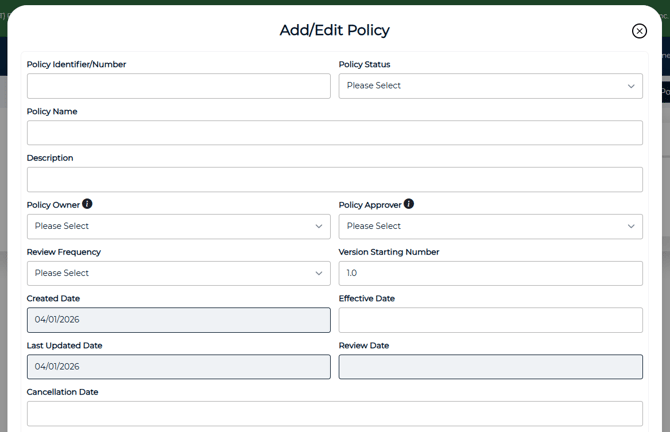
NOTE: You must first have a user defined as Policy Owner and/or a Policy Approver. (Click the "i" for more information.) This can be completed within Administration > Manage Clients > Users.
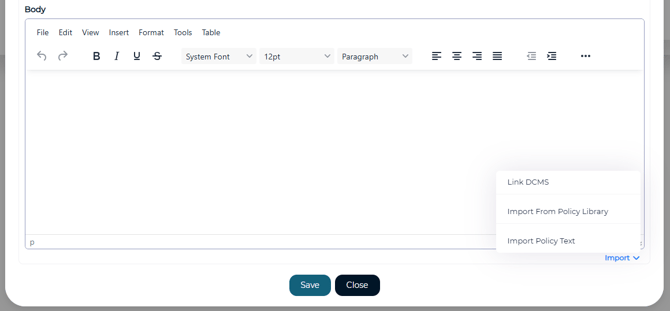
Next, add policy content. You can do this in several ways:
Option 1: Enter the text directly
- Type the policy text into the body editor.
- Click Import > Link DCMS.
- Select the appropriate DCMS document(s), and then Link.
- Click Import > Import From Policy Library.
- Choose the Library Level and the Policy Group.
- Select a Policy from the list, then OK to load the content into the body.
- Click Import > Import Policy Text.
- Select the file (Word documents only), then click OK.