Reviewer configuration in the Document Control Management System (DCMS) lets you decide exactly which users can review a document for each reviewer type. You create reviewer types as list items, then assign each user to one or more of them in their entitlements.
When you select reviewers on a document, each reviewer type lists only the users assigned to it. The right people show up for each review role, and one person can cover several roles. Once you create reviewer types, you can also set them as default approvers for each document type.
Assigning reviewer types works the same way as assigning Waiver entitlements, so if you've set those up before, this will feel familiar.
⚠️Prerequisites: Users must have the DCMS Manager entitlement to access the Reviewer Configurations.
Creating Reviewer Types
1. From the DCMS List, open Settings and select the Review Configuration tab
2. Select the category you want to add a reviewer type to: DCMS Process Approver, DCMS Process Owner, or DCMS QMS Owner.
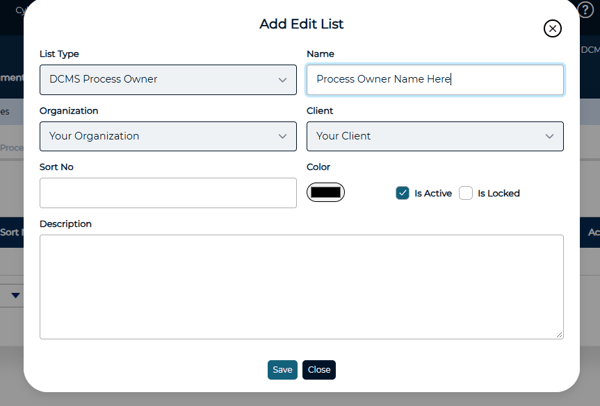
3. Click + Add. The Add Edit List window opens with the List Type already filled in for the category you selected.
4. Enter a Name for the reviewer type
5. Optionally, enter a Sort Number to set where the reviewer type appears in the list and description
6. Click Save to add the new reviewer type to the list.
💡Name reviewer types so users can tell them apart easily when they choose reviewers on a document, for example by department or review function.
Assigning Users to Reviewer Types
1. Open the entitlements for the user you want to assign.
2. Scroll to the DCMS section and check the reviewer type (DCMS Process Approver, DCMS Process Owner, or DCMS QMS Owner)
3. Click the arrow next to the entitlement to open the reviewer type dropdown.
4. Select one or more reviewer types for this user.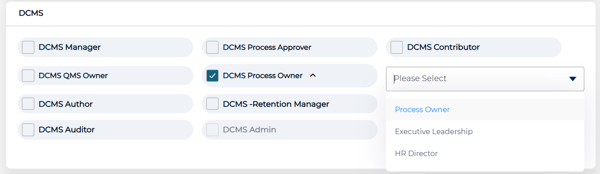
💡A user can belong to more than one reviewer type, so you don't need duplicate accounts for people who review in more than one area.
Setting Default Approvers for Document Types
Once you create reviewer types, they're available to select as default approvers for each document type.
1. Open DCMS Settings and select the List Type tab.
2. In the List Type dropdown, select Type.
3. Click the edit icon next to the document type you want to update or create a new type
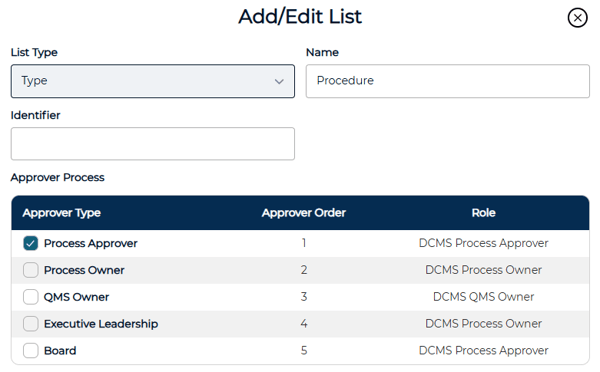
4. In the Add/Edit List window, go to the Approver Process table. It lists every active reviewer type with its Approver Order and Role.
5. Check each reviewer type you want as a default approver for this document type.
Click Save.