
At times, Cyturus Support may request additional details about the network activity generated in your browser to better understand and resolve reported issues. In these situations, you may be asked to record a HAR (HTTP Archive) file, which logs network requests during the troubleshooting process. Providing browser console logs alongside the HAR file can offer deeper insight into potential errors. Additionally, collecting Windows log files, when applicable, can further assist in diagnosing complex technical concerns. Sharing comprehensive logs ensures our support team has the necessary information to perform a through analysis in an effort to deliver an effective resolution.
Note: A HAR file records the details of your browser activity during the capture process, including information such as cookies and the web pages accessed. Since the HAR file may contain personal or sensitive data captured during the recording session, it is important to handle and store these files securely. Anyone with access to your HAR file could potentially view this information. To enhance data protection, consider using a HAR file sanitization tool (such as the one provided by Cloudflare) which is designed to help remove sensitive content before sharing the file.
Note: If you’re on a corporate network, VPN, or using a web security gateway (such as Zscaler, Palo Alto Prisma, Cisco Umbrella, etc.), your HAR file will include the effects of those tools. That’s normal, and the results still help us understand your experience.
For comparison, if possible, please record one HAR file on your corporate connection and another from a different network (home, mobile, or VPN-off). This helps us see whether the performance issue is related to the network path or the application itself.
This article includes these sections:
Instructions for generating HAR files
Click the links below to read the instructions to generate a HAR file and console logs in the browser that you use.
- Generate a HAR file in Chrome
- Generate a HAR file in Firefox
- Generate a HAR file in Safari
- Generate a HAR file in Edge
Generate a HAR file in Chrome
To generate a HAR file in Chrome, follow these steps:
- Launch Chrome and navigate to the page where the issue is occurring.
- Click the ⋮ menu icon and select More Tools > Developer Tools.
- In the Developer Tools panel, select the Network tab. Keep this tab open as you reproduce the issue and capture all relevant network activity.
Tip: If Cyturus Support requests a HAR file that includes WebSockets, select the Socket option within the Network tab. Reload your browser to begin capturing WebSocket traffic. Note that the Socket option filters the displayed traffic for WebSocket logs and, when exporting a HAR file, will only download WebSocket logs rather than all activity.
- Locate the round record button in the upper left of the Network tab. Ensure it is red, indicating recording is active. If it appears grey, click it once to start recording.
- To retain logs throughout the session, make sure to check the Preserve log box.
- Click the grey crossed-circle button to clear any existing network logs.
- With recording active, reproduce the issue so Chrome can capture all relevant network requests.
- When finished, click the download icon labeled Export HAR to export and save the file to your computer.

The instructions are the same for a MAC computer or a Windows computer.
For any issues generating a HAR file in Chrome, see this article from Google's Help Center: Capture web session traffic.
To collect console logs in Chrome
- Open Chrome and navigate to the page where the issue is occurring.
- Click the ⋮ menu icon in the upper-right corner, select More Tools > Developer Tools.
- Within the Developer Tools panel, click the Console tab to view log activity.
- Before you start to reproduce the issue click the grey crossed-circle button to clear any existing console messages.
- Start to reproduce the issue, and monitor this section for any error messages that appear.
- Take screenshots of any errors displayed in the Console, and include these images with your support ticket to assist with troubleshooting.
Generate a HAR file in Firefox
To generate a HAR file in Firefox, follow these steps:
- Launch Firefox and navigate to the page where you are experiencing the issue.
- Click on the ≡ menu, and select More Tools > Web Developer Tools.
- In the Developer Tools panel, select the Network tab. Keep this tab open as you reproduce the issue and capture all relevant network activity.
- To retain logs throughout the session, make sure to click the gear menu icon, and select Persist logs.
- Click the grey crossed-circle button to clear any existing network logs.
- Reproduce the issue so Firefox can capture all relevant network requests.
- Once the activity is recorded, click the gear menu icon and select Save All As HAR to export the data and save the file to your computer.
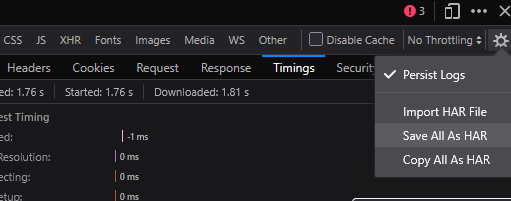
Finally, attach the HAR file to your Cyturus Support ticket for analysis. For detailed instructions on sending HAR files, refer to the section titled “Instructions for sending HAR files.”
The instructions are the same for a MAC computer or a Windows computer.
For any issues generating a HAR file in Firefox, see this article from Firefox Source Docs: Network Monitor.
To retrieve console logs in Firefox
- Open Firefox and navigate to the page where the issue is occurring.
- Click on the ≡ menu, and select More Tools > Web Developer Tools.
- Within the Web Developer Tools panel, click the Console tab to view log activity.
- Before you start replicating the issue, click the garbage can icon to clear to console.
- Start to reproduce the issue, and monitor this section for any error messages that appear.
- Take screenshots of any errors displayed in the Console, and include these images with your support ticket to assist with troubleshooting.
Generate a HAR file in Safari
To generate a HAR file in Safari, follow these steps:
- Launch Safari and navigate to the page where the issue is occurring.
- Ensure the Develop menu is enabled. If the Develop menu does not appear, refer to the Safari User Guide article, "Use the developer tools in the Develop menu in Safari on Mac," for guidance on activating it.
- Once available, from the menu bar select Develop > Show Web Inspector to launch Safari's developer tools.
- With the Web Inspector open, navigate to the Network tab. Keep this tab active throughout the process to capture all relevant network traffic.
- To retain logs throughout the session, make sure to enable the Preserve log option.
- Click the grey crossed-circle button to clear any existing network logs.
- Reproduce the issue so Safari can capture all relevant network requests.
- After you have captured the necessary data, click the Export icon within the Network tab to save the HAR file to your computer.
For any issues generating a HAR file in Safari, see this article from Safari Developer website: Web Inspector.
To retrieve console logs in Safari
- Open Preferences and navigate to the Advanced tab.
- Select Show Developer menu in the menu bar.
- Close Preferences.
- In the menu bar, select Developer > Show error console.
- Screenshot any errors that appear.
To generate a HAR file in Edge
- Launch Edge and navigate to the page where the issue is occurring.
- Click the … menu icon in the upper-right corner, select More Tools > Developer Tools.
- In the Developer Tools panel, select the Network tab, identified by a Wi-Fi signal icon. Keep this tab open as you reproduce the issue and capture all relevant network activity.
- Locate the round record button in the upper left of the Network tab. Ensure it is red, indicating recording is active. If it appears grey, click it once to start recording.
- To retain logs throughout the session, make sure to check the Preserve log box.
- Click the grey crossed-circle button to clear any existing network logs.
- With recording active, reproduce the issue so Edge can capture all relevant network requests.
- When finished, click the download icon labeled Export HAR to export and save the file to your computer.
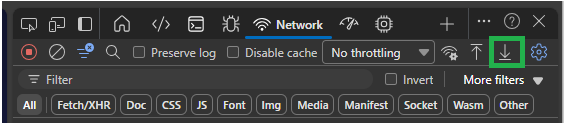
Finally, attach the HAR file to your Cyturus Support ticket for analysis. For detailed instructions on sending HAR files, refer to the section titled “Instructions for sending HAR files.”
For any issues generating a HAR file in Edge, see this article from Microsoft Edge website: Inspect network activity.
To retrieve console logs in Edge
- Launch Edge and navigate to the page where the issue is occurring.
- Click the … menu icon in the upper-right corner, select More Tools > Developer Tools.
- Within the Developer Tools panel, click the Console tab, indicated by the terminal icon, to view log activity.
- Before you start to reproduce the issue click the grey crossed-circle button to clear any existing console messages.
- Start to reproduce the issue, and monitor this section for any error messages that appear.
- Take screenshots of any errors displayed in the Console, and include these images with your support ticket to assist with troubleshooting.
Instructions for sending HAR files
Before submitting a HAR file to Cyturus, it is important to both rename and compress (zip) your HAR files prior to sending. Uncompressed HAR files can exceed the size limits for our support ticketing and email attachment systems. Additionally, HAR files are typically named after the page URL by default; files with a .com extension may be flagged by spam or phishing filters. To help ensure successful delivery, provide each HAR file with a clear, descriptive name that does not include full URLs.
Note: If you are using the Support Portal, please be aware that attachments cannot include HAR files or any individual files larger than 50MB. As an alternative, you may send your HAR file to Cyturus Support by attaching it to your email ticket or by sharing a secure link using a file-sharing service such as Google Drive or Dropbox.