DCMS Configuration
Before documents can be created and published in DCMS, several configuration items must be defined. These settings determine how documents are categorized, reviewed and stored.
To access DCMS Configuration
- via Manage Clients
- Select Administration > Manage Clients and edit the client
- Select Client Products
- Select the DCMS tab on the left
- via Navigation Pane
- Hover over the DCMS Module
- Select configuration
- via DCMS Module
- Within the module on the Document List, select the setting button
Categories and Subcategories
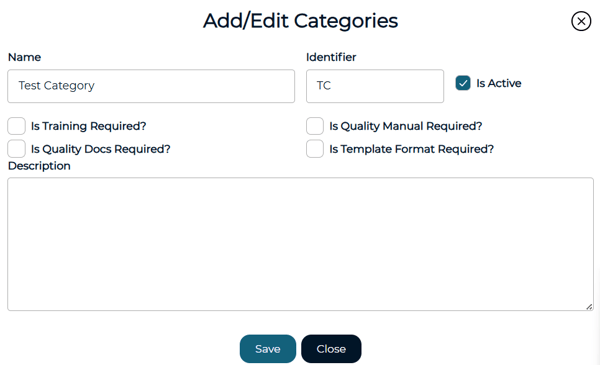
Categories and Subcategories are used to organize documents within the DCMS. These fields appear when creating a document and help group documents by department, business function or however the organization chooses to structure their documents.
For example:
| Category | Subcategory |
| IT Operations |
Change Management |
| Information Security | Access Control |
| Human Resources | Code of Conduct |
Categories also have text field options. These are optional settings and can be selected if users would like to enter text in these fields for visibility.
Reviewers
Reviewer types are responsible for reviewing or approving documents before publication. The approval order is determined by the order in which reviewer types are created.
Examples of reviewer types include:
- Process Approver
- Department Approver
- Executive Leadership
The functional roles are assigned to users via their individual entitlements
To add a reviewer type:
- Enter the reviewer type name
- Select the Functional Role
- Select Save
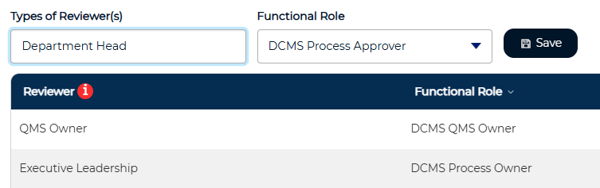
⚠️ Reviewer types must be configured before List Types can be created. If no reviewers are set up, List Type configuration options will be unavailable.
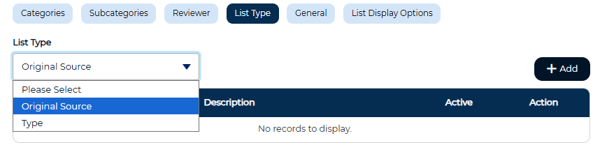
List Types
List types define the documents type and source
Document Type
- Policy
- Procedure
- Manual
Source Type
- Existing Document
- New Document
Repository
A repository must be configured before documents can be published. The repository stores finalized documents once they have completed the approval process.
If a repository has not been configured, documents can still be created and submitted but cannot be published.
For more information on setting up repositories, click here.
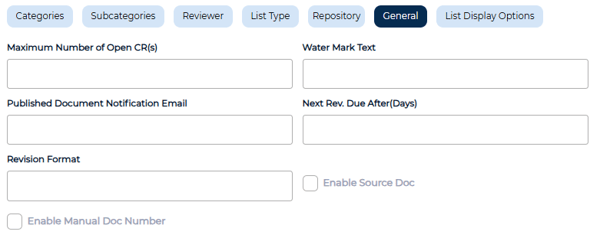
General
The General section controls broader DCMS module behavior and configuration settings.
These settings help align the system with the organization’s document control process.
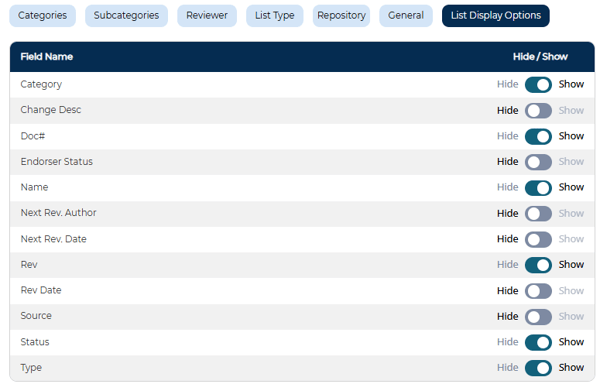
List Display Options
These options determine which columns are shown on the Document List page.
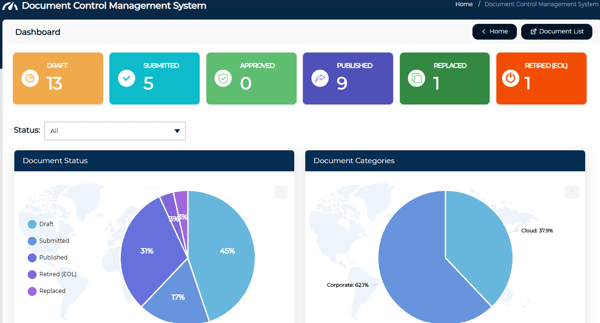
Dashboard
The DCMS Dashboard provides a high-level overview of document activity across the module. This includes:
- Document Counts by Status
- Document Status and Category Charts
- Documents Submitted by Type
- Endorsement Status
- Tracks document approval and endorsement progress
Document List
The Document List page displays all documents within the DCMS Module. Each document is listed with key information determined by the selections made in List Display Options.
Users can filter by various options to narrow down results and focus on specific documents, such as items pending review or documents within a particular category.
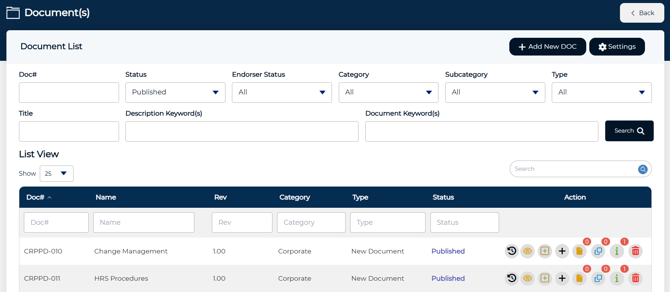
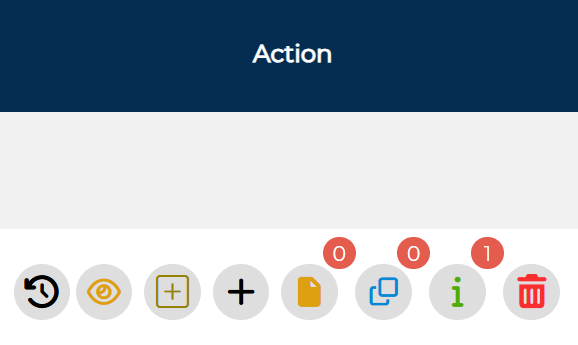
Action Icons
Action icons allow users to perform various tasks directly from the document list. Available actions depend on the document status and the user's permissions.
From left to right:
- View the document's attachment log
- View document details
- Create a Change Request
- Create a Change Request Notification
- View document's Change Requests
- View document's Change Request Notifications
- View Document Revisions
- Delete Document