What is a Conformity Engagement?
Once your Living Control Set™ is established, you can begin evaluating it against specific compliance frameworks such as CMMC 2.0, HIPAA, or PCI DSS using a Conformity Engagement.
A Conformity Engagement uses your Living Control Set as its foundation rather than building a separate assessment from scratch, comparing it against the requirements of a selected framework to identify where you already have coverage. Any controls the framework requires that are not yet part of your LCS are automatically calculated and listed for your review as a delta.
Creating a Conformity Engagement
You can create a Conformity Engagement in two ways:
From the Engagement List:
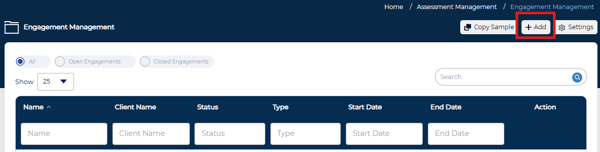
1. Select the Add button, then select Conformity
2. Select the STRM Type from the dropdown.
• The Engagement and Assessment name will auto-populate
3. Select Next
4. When prompted, select Yes, Inherit Data to inherit data from your Living Control Set, or No, Continue Without Inheriting to skip
•If inheriting, select the data points you want to carry over from the LCS and select Next.
5. Review the Conformity Analysis and select the delta controls you want to include
6. Select Create Conformity and Merge Delta into LCS and then confirm
From the LCS Dashboard:

1. Select the Create Conformity Assessment button
2. Select the STRM Type from the dropdown.
• The Engagement and Assessment name will auto-populate
3. Select Next
4. When prompted, select Yes, Inherit Data to inherit data from your Living Control Set, or No, Continue Without Inheriting to skip
-
-
If inheriting, select the select the data points you want to carry over from the LCS and select Next.
-
5. Review the Conformity Analysis and select the delta controls you want to include
6. Select one of the following:
-
- Create Conformity and Merge Delta into LCS to sync the Conformity Assessment with your Living Control Set. The delta controls will be added to a new LCS iteration automatically.
- Create Standalone Conformity to create the Conformity Assessment independently, without merging controls into the LCS.
Once confirmed, the CRT will generate the Conformity Engagement and create a new iteration in your LCS engagement based on the most recent existing iteration, carrying forward all existing data and adding the delta controls and assessment objectives.
If you selected Create Standalone Engagement, the CRT generates an independent assessment and no changes are made to your Living Control Set.
Reviewing the Conformity Analysis
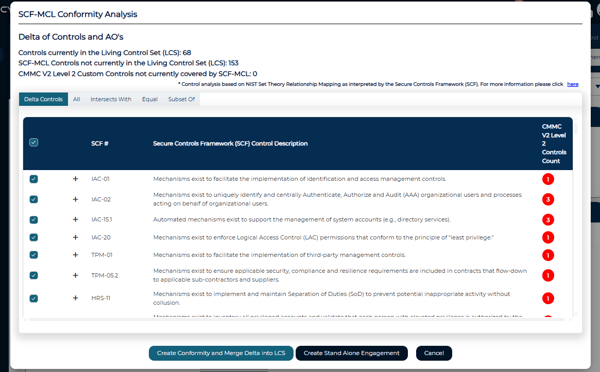
After selecting your STRM Type and configuring inheritance, the CRT displays the Conformity Analysis. At the top of the screen, a summary shows the number of controls currently in your LCS, the number of controls not yet in your LCS, and either the number of SCF AOs not currently in your LCS or the number of unmapped controls not currently covered by the MCL, depending on the STRM.
1. Delta Controls shows only the controls required by the framework that are not yet part of your Living Control Set. These are the controls that will be added if you choose to merge into the LCS. All delta controls are selected by default.
2. All shows every control in the framework regardless of whether it already exists in your LCS.
3. Subset Of shows controls that fall within the scope of existing LCS controls.
4. Intersects With shows controls that share a relationship with controls already in your LCS.
5. Equal shows controls that have a direct one-to-one match with controls already in your LCS.
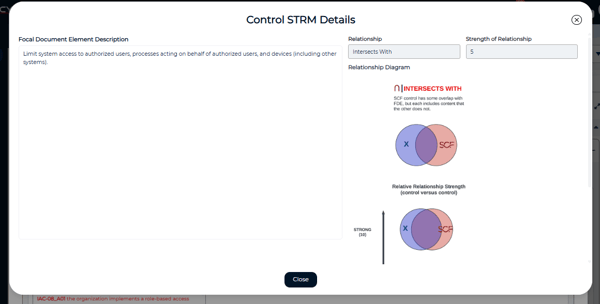
Each control can be expanded to view its STRM relationship details, including the relationship type, strength of relationship, and associated FDE IDs and descriptions.
Finding Your Conformity
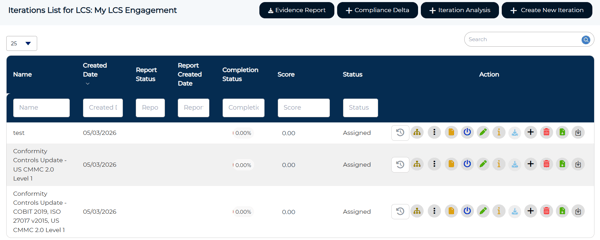
The Conformity Engagement appears in the Engagement List in orange italic text, making it easy to distinguish from your Living Control Set and standalone engagements.
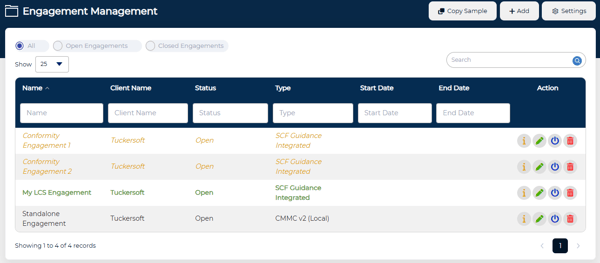
After creation, the CRT will also create a new iteration in your LCS engagement based on the most recent existing iteration, carrying forward all existing data and adding the delta controls and Assessment Objectives. The new iteration will be named Conformity Controls Update [Class Name].
Accessing Conformity Data from the Living Control Set
The Living Control Set assessment form includes built-in access to your Conformity Assessment control data. For any control that appears in one or more Conformity Assessments, you can review that framework-specific information without navigating away from the LCS.
The assessment form displays a Conformity tab on these controls, with the tab label reflecting how many Conformity Assessments include that control. Controls with linked Conformity Assessment data also display a conformity icon on the control row, giving you a quick visual indicator before opening the control.
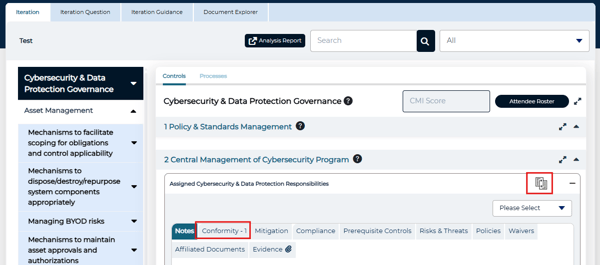
To access the Conformity Assessment:
1. Select the Conformity tab, then select the name of the Conformity Assessment you would like to view.
2. If the selected assessment contains more than one applicable control, a Conformity Controls list will appear. Select the control you want to view.
A panel will open displaying the full control view from that Conformity Assessment, identical to what you would see if you navigated directly into the assessment. You can edit and update the control directly from this panel, allowing you to work within the Conformity Assessment without leaving your LCS engagement.
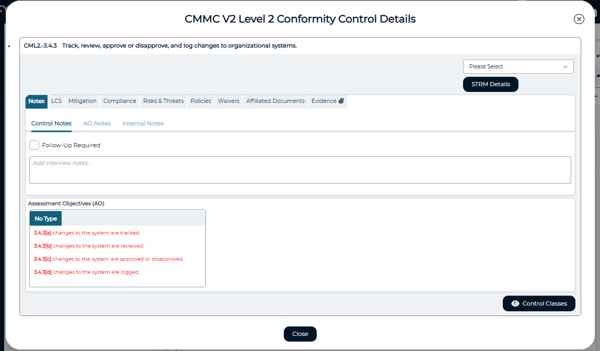
The panel includes two additional points of reference:
The LCS tab shows every Living Control Set control that links to the selected conformity control. This is the reverse of the threading view. Instead of seeing which assessments an LCS control appears in, you can see which LCS controls a given conformity control maps to.
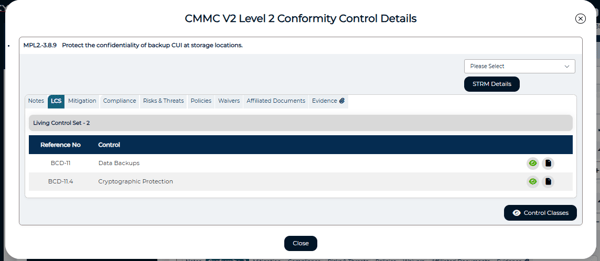
The STRM Details button opens a separate view showing the relationship between the framework requirement and its mapped SCF control, including the relationship type, a numeric strength of relationship score, and a visual diagram illustrating how the two overlap.