
This initial configuration is a one-time setup for those customers who wish to use the Box repository with the Cyturus Application Suite. This setup is necessary to open the communication channel between Box and Cyturus.
There are a couple of steps here. First the one-time setup piece needs to be completed, and then the repository configuration needs to occur.
Much of the following was derived from official Box documentation, and clarified for use with the Cyturus application. The original document information can be found here:
https://developer.box.com/guides/getting-started/first-application
Creating the Box App
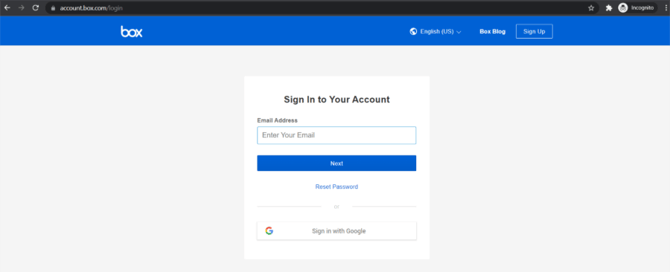
- Navigate to the following: https://account.box.com/
- Log in with your Box credentials:
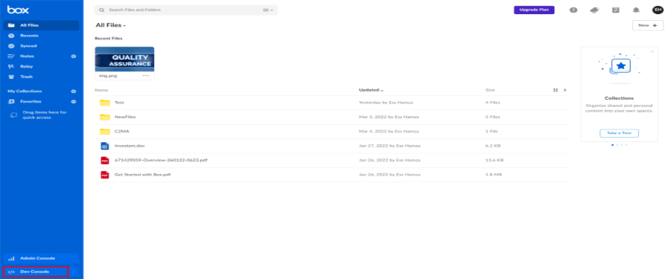
- Click on your profile icon (top-right), and select Developer Console.
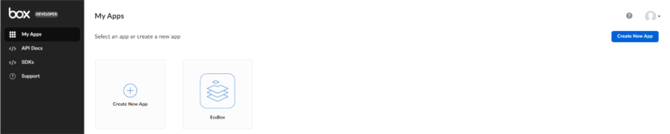
- Once you are in the Developer Console, click the Create New App button.
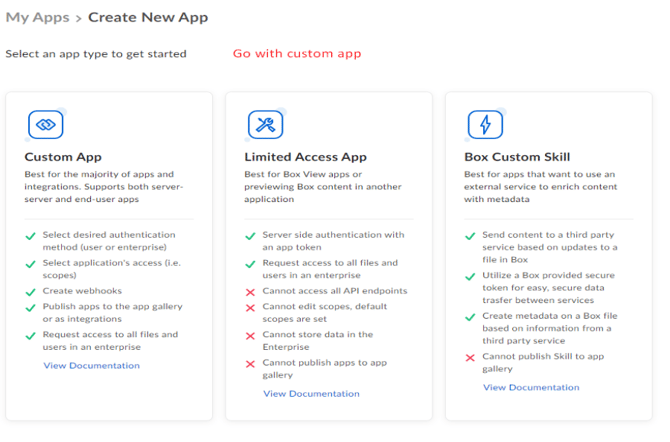
- Once you've clicked the Create New App button, it will offer three options of app types to create. Select the Custom App option.
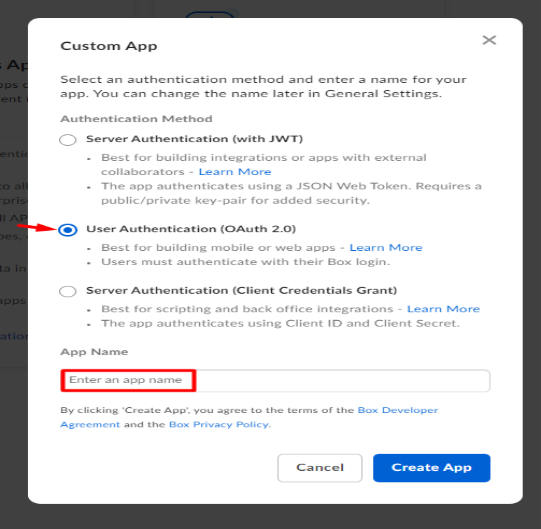
- Next, you'll be prompted to select the Authentication Method. Select User Authentication (OAuth 2.0), and then provide an App Name for your app. This name can be anything that identifies it's purpose. Once complete, click Create App.
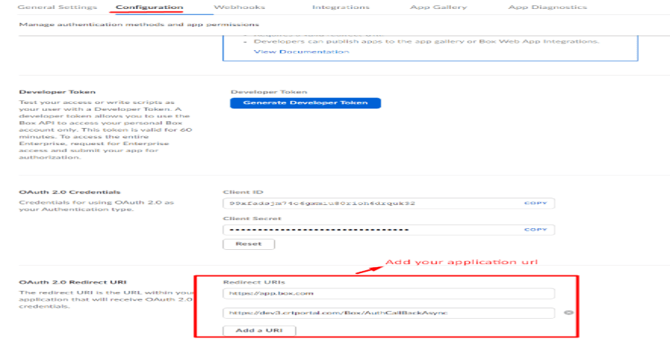
- You will now be shown a number of configuration options for your newly created app. On the Configuration tab, there is an option for OAuth 2.0 Redirect URI. Click the Add a URI button, and in the field you will enter the base URL of your PBC application and append /Box/AuthCallBackAsync as shown in the example: https://example.crtportal.com/Box/AuthCallBackAsync.
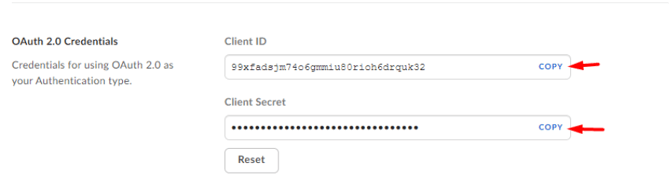
- Finally, on the same Configuration tab, you will see an area called OAuth 2.0 Credentials. You will need the Client ID and Client Secret values to enter into the Cyturus application configuration in the following steps.
Configuring the Box Connector App in Cyturus
This step involves taking the Client ID and Client Secret from the previous section, and entering them into the application configuration section of Cyturus.
Please note: To perform this action you must have one of the following Product Security Roles (PSR):
- Instance Admin
- Organization Admin
- Client Admin
AND/OR have the following entitlements:
- Client Technical Admin
- Technical Admin
- First, log in to the Cyturus application with your credentials.
- Next, in the left hand menu, select Administration > Manage Clients. This will open the Application Settings area.
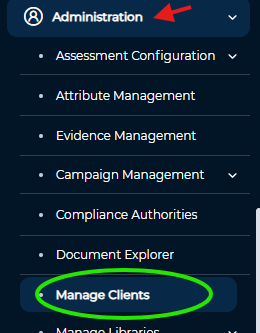
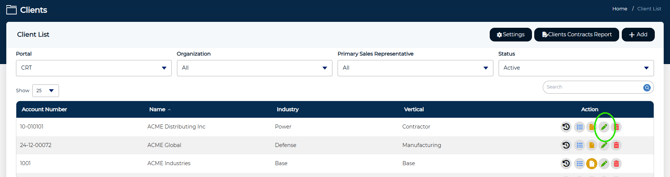
- Once within the Manage Clients area, choose the Client which you would like to configure and click the green pencil icon to edit that Client.
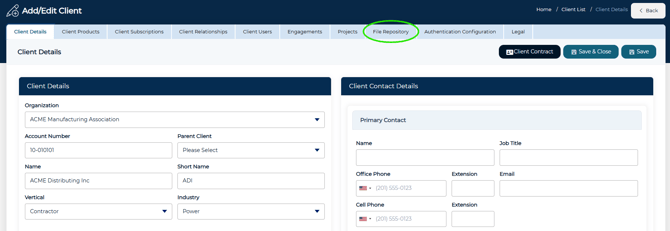
- Once in the Add/Edit Client screen, click the File Repository tab.
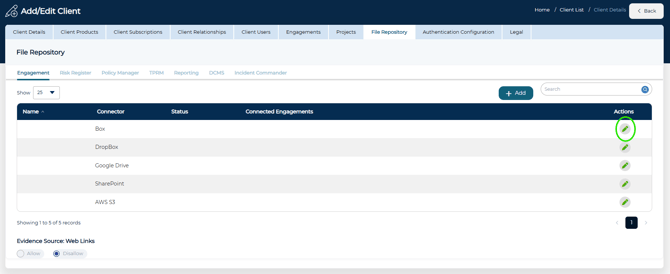
- Then, within the specific module tab you wish to configure, click the green pencil icon to Edit the Box repository connector.
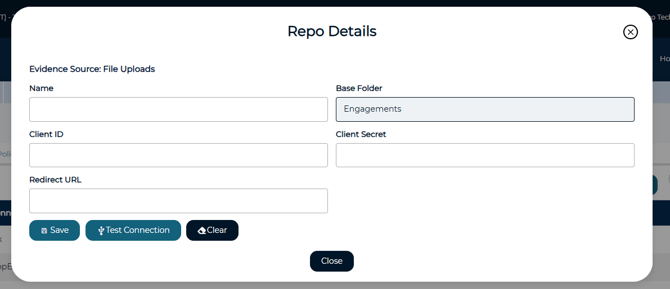
- Next, you will use the Client ID and Client Secret from earlier steps to configure the application connector. The following fields are used and will need to be completed. Once all fields are completed click the Save button:
- Name - This can be whatever you choose to name this connector. Something that is memorable.
- Client ID - This will be the Client ID value from previous steps.
- Client Secret - This will be the Client Secret value from previous steps
- Redirect URL - This is the Redirect URI value from earlier steps.
- When the Save button is clicked you will be directed to the Box authorization page. This will ask you to sign in with the account you wish to utilize as the repository.