
⚠️ To use the Audit Form:
-
The iteration must be designated as an Audit Iteration
-
The user must have an Auditor entitlement
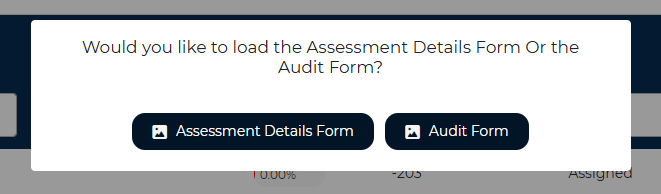
When editing an audit iteration, users are prompted to choose between the standard assessment view and the Audit Form.
Layout and Navigation
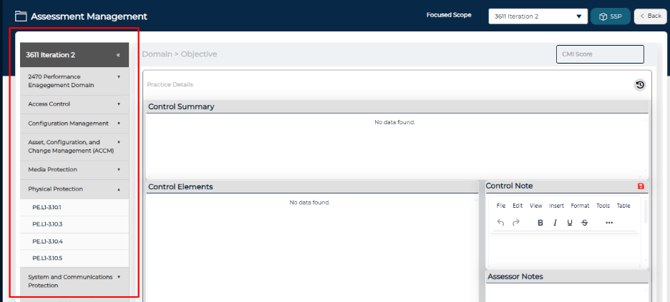
Sidebar Navigation
The left-hand sidebar displays all domains included in the assessment. Expanding a domain reveals its associated controls, listed by reference number. Selecting a control loads its detailed information in the main panel.
Control Elements and Preview
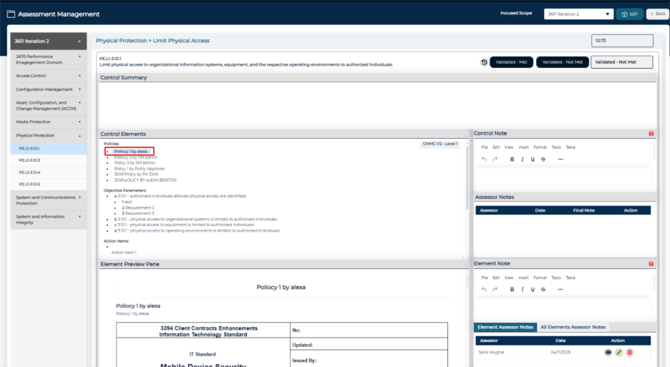
For each selected control, the form displays all related elements, including:
-
Policies
-
Parameters and parameter requirements
-
Action items
-
Evidence
Selecting an element opens a preview panel showing its detailed information. This allows auditors to review supporting material without navigating away from the assessment context.
Assessment Objective and Status Tracking
Assessment Objective Status
Each assessment objective includes a status field that allows auditor to mark it as Met or Not Met
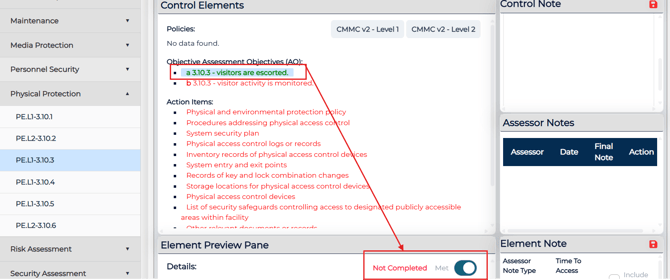
Control-level status is determined by assessment objective completion. A control can only be marked as Met when all associated assessment objectives are marked as Met. If any assessment objective is marked as Not Met, the control cannot be marked as Met.

Visual Progress Indicators
The Assessor Form uses visual indicators to help auditors track assessment progress:
-
Elements not yet visited appear in red
-
Visited elements appear in orange
-
Assessment objectives turn green only when marked as Met

Assessor Notes
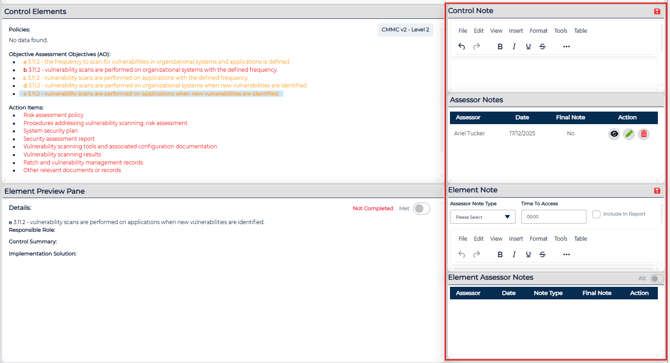
Control and Element Notes
Auditors can add notes at both the control level and the element level.
When viewing a control or element, the notes panel updates to display the relevant notes. Auditors can add, edit, and delete their own notes.
Final Notes and Note Classification
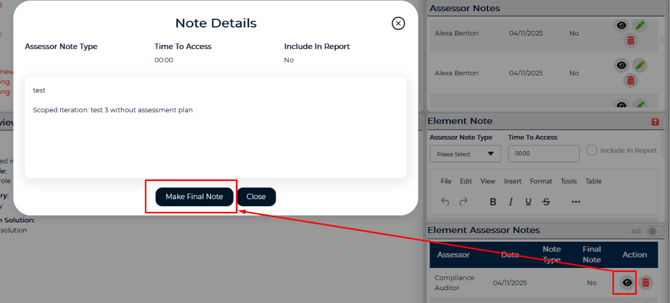
At the element level, auditors can:
- Designate a note as the final note
- Assign a note type
- Select whether a note should be included in reporting

Team Lead Review
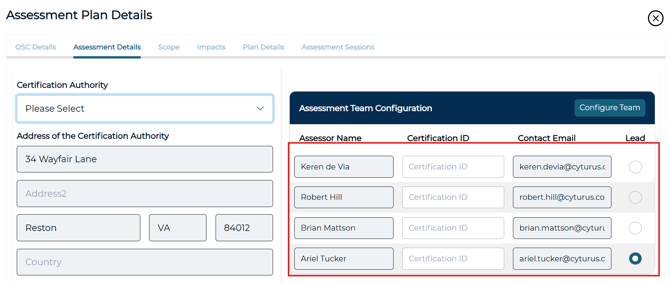
Users designated as a team lead can view notes from all auditors, delete notes and mark a single note as the final audit note. This is configuration is set within the Assessment Plan Details.
Time to Assess
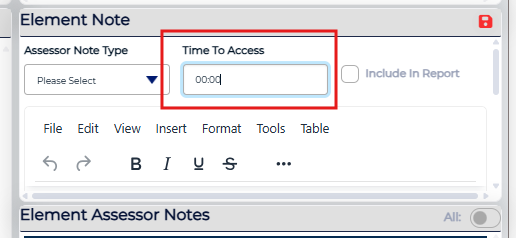
Each assessment objective includes a Time to Assess field. Time entered at the assessment objective level is automatically rolled up and totaled at the control level.
Additional Auditor Tools
- A Focused Scope dropdown to identify which iterations are included in the Assessment Plan
- Read-Only access to the SSP Dashboard
- A POA&M view that displays all practices marked as POA&M in a consolidated, read-only list with export capability
